Maya Playblast Tool

Blog, Programming, Resources, Work

Python · Autodesk Maya


I built this tool to make creating playblasts as simple and consistent as possible for animators.

The tool builds on Maya Capture by abstractfactory, which I used as a foundation and adapted to fit our production workflow. I developed the surrounding UI and workflow, including automatic settings, project-specific overrides, naming and versioning, and camera detection through Maya’s Camera Sequencer.

The idea was that animators should be able to open the tool and press OK without having to adjust any settings manually. The tool handles the setup in the background, while still allowing more control when needed.

Automatic Setup

The tool loads default settings from the server. Before applying them, it checks whether the current project has its own settings in a designated folder. If project-specific settings are available, these take priority over the server defaults.

This allows the tool to adapt to different projects without requiring animators to configure everything themselves.

Simple by Default

The interface opens in a minimal mode, showing only what is needed for a standard playblast. Additional settings can be expanded when a more specific setup is required.

Key Features

  • Automatic setup: Loads the appropriate default settings for the current project.
  • Project-specific settings: Uses project overrides when available, falling back to server defaults otherwise.
  • Automatic naming and versioning: Generates file names and finds the next available version.
  • Camera detection: Retrieves camera information from Maya’s Camera Sequencer.
  • Scene settings: Temporarily disables overscan for the playblast and restores the original value afterward.

The goal was to remove unnecessary decisions from the animator’s workflow while keeping the tool flexible enough to handle different production needs.

Maya Import & Export Tool

Programming, Resources

Python · Autodesk Maya · Redshift · Pipeline Tools

A tool for importing, referencing and exporting assets in Maya, with flexible options for file handling, grouping, namespaces and animation.

Import

The import tab supports both importing and referencing, choosing the appropriate method based on the file format.

Files can be grouped individually or combined into a single group, with options to reuse existing namespaces or assign unique namespaces per file.

Supported formats:

  • Maya ASCII (.ma)
  • Maya Binary (.mb)
  • FBX (.fbx)
  • OBJ (.obj)
  • Alembic (.abc)
  • Redshift Proxy (.rsProxy)

Formats that don’t support referencing are imported instead. For Redshift proxies, the tool automatically creates the proxy nodes and applies default settings.

Export

The export tab provides options for exporting selected objects or cameras, with control over file formats, animation ranges and output settings.

Selected Object Export

Selected objects can be exported as separate files or combined into a single file. Exports can be either static or animated.

For static exports, the tool uses the objects’ current state at the current timeline frame. For animation, the export range can be defined using the timeline, custom start and end frames, render settings, or individual shots from the Camera Sequencer.

Additional options include:

  • Baking animation before export
  • Adding pre-roll and post-roll frames
  • Setting a version number

Camera Export

A separate camera mode provides additional options for exporting cameras from the scene.

Cameras can be collected from Camera Sequencer shots, selected from all cameras in the scene, or chosen manually. The same animation and time range options available for object exports can also be used for cameras.

Automatic Versioning

The tool retrieves the user’s initials from their Windows login and uses them as part of the export naming workflow.

Maya Settings Tool

Programming, Resources

Python · Autodesk Maya · Redshift

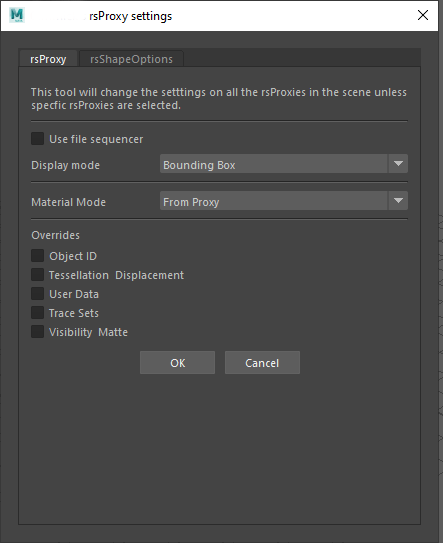
A utility tool for applying Redshift settings to multiple objects at once, without having to edit each object individually.

Redshift Proxy Settings

The first tab lets me change the display mode of Redshift proxies across a scene.

It can operate on selected proxies, find proxies within the current selection, or automatically find all Redshift proxies in the scene when nothing is selected. This makes it easy to switch the display mode across an entire scene in just a few clicks.

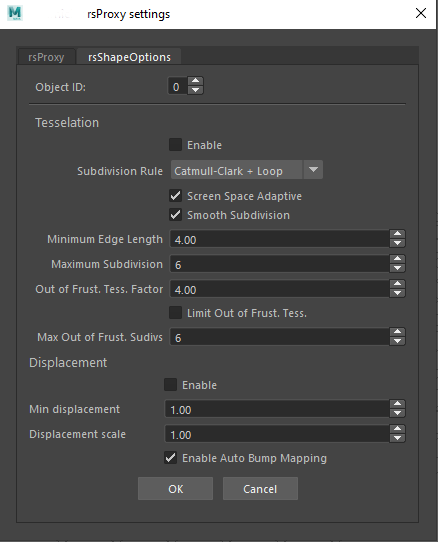
Redshift Shape Options

The second tab provides controls for Redshift shape attributes on selected objects.

This includes toggling tessellation and displacement, as well as adjusting their associated values across multiple objects at once.

Key Features

Shape attributes: Toggle tessellation and displacement and adjust their settings across selected objects.

Batch editing: Apply settings to multiple objects in one operation.

Flexible selection: Work with selected proxies, proxies within a selection, or all proxies in the scene.

Proxy display control: Quickly change the display mode of Redshift proxies.